# Virtual Booth

We support using web application(by QR code) to access AI photography services when hardware limitations such as venue restrictions.events selection,themes selection and photography functions can be used smoothly like the hardware.

## How to use

Login in Maze studio website <https://studio.maze.guru/>

<figure><img src="/files/89TcpZ5pVxPPt3a6pD4I" alt=""><figcaption></figcaption></figure>

Go to the Maze Mirror page,enter the devices panel

<figure><img src="/files/CPbYPsHbbm2TpDi6gHYv" alt=""><figcaption></figcaption></figure>

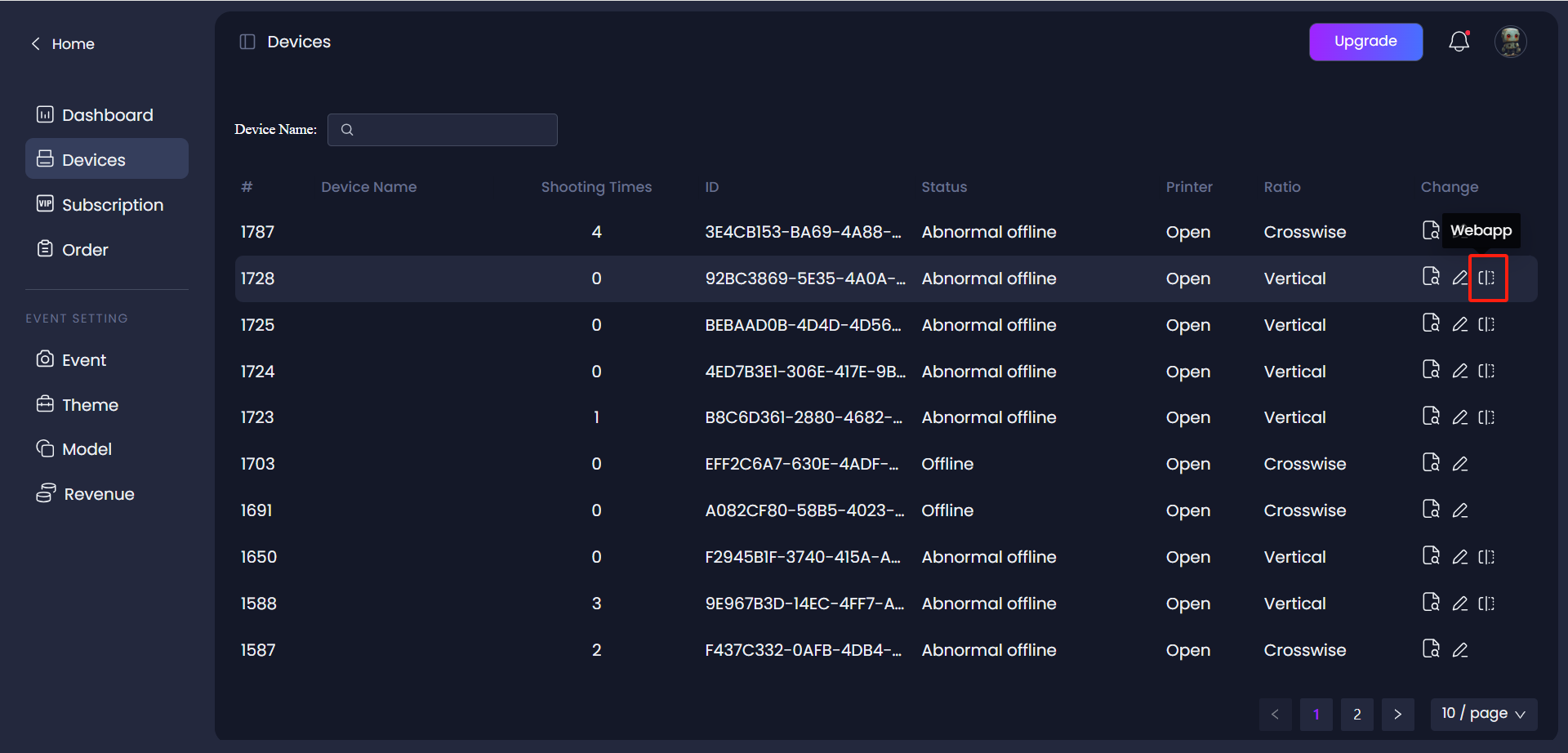
Choose a device and press the webapp button

<figure><img src="/files/vNY52AkczokQzqoMgOtD" alt=""><figcaption></figcaption></figure>

Pop up webapp dialog box, you can choose default theme and expires time

<figure><img src="/files/wuhp2b2Efli0CUwop6hy" alt=""><figcaption></figcaption></figure>

copy the link or save the QR code

<figure><img src="/files/w3UzqZlX0qjbHKhnjgVH" alt=""><figcaption></figcaption></figure>

open your webapp and start your business

<figure><img src="/files/Hi1j4NeP1p2dznXRZHIh" alt=""><figcaption></figcaption></figure>


---

# Agent Instructions: Querying This Documentation

If you need additional information that is not directly available in this page, you can query the documentation dynamically by asking a question.

Perform an HTTP GET request on the current page URL with the `ask` query parameter:

```
GET https://docs.maze.guru/maze-mirror/virtual-booth.md?ask=<question>
```

The question should be specific, self-contained, and written in natural language.
The response will contain a direct answer to the question and relevant excerpts and sources from the documentation.

Use this mechanism when the answer is not explicitly present in the current page, you need clarification or additional context, or you want to retrieve related documentation sections.