# Merchant Quick Start

This guide is for merchant who buy the Maze Mirror hardware &#x20;

## Merchant Operation Process Diagram

<figure><img src="https://186173503-files.gitbook.io/~/files/v0/b/gitbook-x-prod.appspot.com/o/spaces%2FFge3FRw8Er12fPW026oL%2Fuploads%2F4NI6L1EvBnoZYhQZX7PW%2Fimage.png?alt=media&#x26;token=054647e8-1ed4-4613-822f-9cba249e54e8" alt=""><figcaption></figcaption></figure>

### 1. Register an account

Register with your email <https://studio.maze.guru/>

<figure><img src="https://186173503-files.gitbook.io/~/files/v0/b/gitbook-x-prod.appspot.com/o/spaces%2FFge3FRw8Er12fPW026oL%2Fuploads%2F30STU0PM962rjS73HoHp%2Fimage.png?alt=media&#x26;token=790a6296-09f0-469c-964a-4bad7b0b65a4" alt=""><figcaption></figcaption></figure>

### 2. Create an enterprise account

<figure><img src="https://186173503-files.gitbook.io/~/files/v0/b/gitbook-x-prod.appspot.com/o/spaces%2FFge3FRw8Er12fPW026oL%2Fuploads%2Fprkh2nvaVJ4ToCAGeWKA%2Fimage.png?alt=media&#x26;token=a60114dc-f29f-4414-99dc-e73bd3c0963d" alt=""><figcaption></figcaption></figure>

### 3. Access Mirror page

<figure><img src="https://186173503-files.gitbook.io/~/files/v0/b/gitbook-x-prod.appspot.com/o/spaces%2FFge3FRw8Er12fPW026oL%2Fuploads%2FAJ0fIf6ZERERCO9uuZ6Y%2Fimage.png?alt=media&#x26;token=420e6da2-fc7a-4be4-bfb1-74a88dfe6046" alt=""><figcaption></figcaption></figure>

### 4. Subscribe

Go to the subscription page, manage subscription

<figure><img src="https://186173503-files.gitbook.io/~/files/v0/b/gitbook-x-prod.appspot.com/o/spaces%2FFge3FRw8Er12fPW026oL%2Fuploads%2Fe9BjIqWw8e6UoxLuPEGK%2Fimage.png?alt=media&#x26;token=670cb5bd-e6fd-4137-b6bc-71ed2f9a6800" alt=""><figcaption></figcaption></figure>

### 5. Payment

Press subscription button, go to payment setting, you can choose to pay by:

* credit card
* cryptocurrency payment

<figure><img src="https://186173503-files.gitbook.io/~/files/v0/b/gitbook-x-prod.appspot.com/o/spaces%2FFge3FRw8Er12fPW026oL%2Fuploads%2FGfIlQQ4Z0eDWvx3OnNl6%2Fimage.png?alt=media&#x26;token=54093b37-3ddc-4a70-8804-6c9930c606d9" alt=""><figcaption></figcaption></figure>

### 5. Customize your events and themes

| Noun           | Definition                                                                                                                                              |
| -------------- | ------------------------------------------------------------------------------------------------------------------------------------------------------- |
| Model/Template | An AI template style. Different models represent different styles, such as realism or anime, and will generate varying types of photos.                 |
| Theme          | A collection of models. users can customize these according to their needs                                                                              |
| Event          | An Event is a collection of models designed for specific themes or activities. You can think of it as a solution tailored for themed events or designs. |

#### 5.1 Create theme

Go to the theme page, press create theme button

<figure><img src="https://186173503-files.gitbook.io/~/files/v0/b/gitbook-x-prod.appspot.com/o/spaces%2FFge3FRw8Er12fPW026oL%2Fuploads%2FqKW6QHFc9jSYpbk9JNeM%2Fimage.png?alt=media&#x26;token=eb5cfd2f-ab78-4e2e-8594-105a8e002d52" alt=""><figcaption></figcaption></figure>

Press add model button

<figure><img src="https://186173503-files.gitbook.io/~/files/v0/b/gitbook-x-prod.appspot.com/o/spaces%2FFge3FRw8Er12fPW026oL%2Fuploads%2FbPaDajvuPnLInfbiouvP%2Fimage.png?alt=media&#x26;token=90ac27b9-0e3b-4446-9cd0-0e115bc63bde" alt=""><figcaption></figcaption></figure>

Choose models you like

<figure><img src="https://186173503-files.gitbook.io/~/files/v0/b/gitbook-x-prod.appspot.com/o/spaces%2FFge3FRw8Er12fPW026oL%2Fuploads%2FammlYpbU2cfj01XhpMET%2Fimage.png?alt=media&#x26;token=ebfa6a4d-cf12-4cda-a843-d7282b9b5b08" alt=""><figcaption></figcaption></figure>

Type in theme name and upload theme cover

<figure><img src="https://186173503-files.gitbook.io/~/files/v0/b/gitbook-x-prod.appspot.com/o/spaces%2FFge3FRw8Er12fPW026oL%2Fuploads%2F2055qiFVB2x7UCp9c6AG%2Fimage.png?alt=media&#x26;token=4d7497f4-6f72-40e7-8b9b-707c13f17820" alt=""><figcaption></figcaption></figure>

Comfirm to create theme

#### 5.2 Create event

Go to the event page, press create event button

<figure><img src="https://186173503-files.gitbook.io/~/files/v0/b/gitbook-x-prod.appspot.com/o/spaces%2FFge3FRw8Er12fPW026oL%2Fuploads%2FfF3SzjLg0NAXpoW177Ub%2Fimage.png?alt=media&#x26;token=4e69e939-b9ef-4a4f-9bed-aaa921dccce3" alt=""><figcaption></figcaption></figure>

fill in all the settings that event required

| Settings            | Tip                                  |
| ------------------- | ------------------------------------ |
| name                | Required                             |
| image action        | Download,Email,SMS,Print             |
| Activity Start Date |                                      |
| Activity End Date   |                                      |
| Description         |                                      |
| Themes              |                                      |
| Frame               | Frame decoration of generated photos |

<figure><img src="https://186173503-files.gitbook.io/~/files/v0/b/gitbook-x-prod.appspot.com/o/spaces%2FFge3FRw8Er12fPW026oL%2Fuploads%2FdoXgUkvmIVu2DEMa4u8u%2Fimage.png?alt=media&#x26;token=e78c222e-8d3f-4226-9001-7673cd96424f" alt=""><figcaption></figcaption></figure>

Confirm to create event

### 6. Login  Mirror device by your email

<figure><img src="https://186173503-files.gitbook.io/~/files/v0/b/gitbook-x-prod.appspot.com/o/spaces%2FFge3FRw8Er12fPW026oL%2Fuploads%2FVpCE0cU5cw59GkRPwjmB%2Fimage.png?alt=media&#x26;token=d3ea03a3-9b08-4e3c-9b8b-feec8c3acec9" alt=""><figcaption></figcaption></figure>

Receive code via email

<figure><img src="https://186173503-files.gitbook.io/~/files/v0/b/gitbook-x-prod.appspot.com/o/spaces%2FFge3FRw8Er12fPW026oL%2Fuploads%2FnK8OwE0cUSRAsMuoi113%2Fimage.png?alt=media&#x26;token=765adad7-3073-4d97-a64e-eaa3c55e8816" alt=""><figcaption></figcaption></figure>

### 7. Start your business

Choose the event you created

<figure><img src="https://186173503-files.gitbook.io/~/files/v0/b/gitbook-x-prod.appspot.com/o/spaces%2FFge3FRw8Er12fPW026oL%2Fuploads%2FD1dt6kIBjD1WLYJaxVb5%2Fimage.png?alt=media&#x26;token=49a9420f-0d4d-4f54-90af-68eeaf24746c" alt=""><figcaption></figcaption></figure>

Start your business

<figure><img src="https://186173503-files.gitbook.io/~/files/v0/b/gitbook-x-prod.appspot.com/o/spaces%2FFge3FRw8Er12fPW026oL%2Fuploads%2FgbxH99WHP4LgkcWKaMcB%2Fimage.png?alt=media&#x26;token=4696cb05-e5c3-4d1c-bd7c-df47bc8493b8" alt=""><figcaption><p>vie</p></figcaption></figure>

### 8. View data

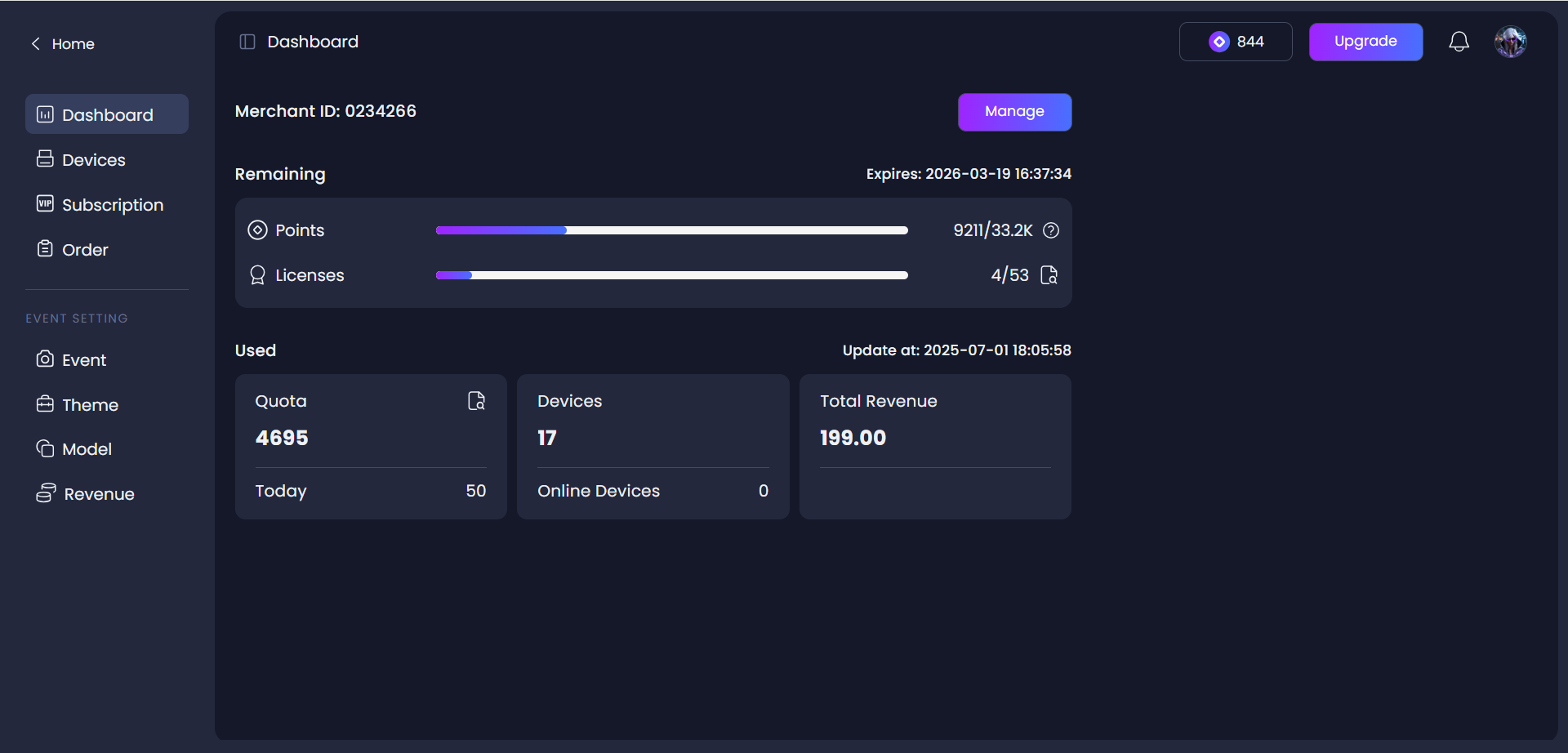
View your revenue on Maze Studio dashboard

<figure><img src="https://186173503-files.gitbook.io/~/files/v0/b/gitbook-x-prod.appspot.com/o/spaces%2FFge3FRw8Er12fPW026oL%2Fuploads%2FL1OoaqEshEAAvK9z5tcs%2Fimage.png?alt=media&#x26;token=3fa60632-b99e-42e6-b832-f7e522892d28" alt=""><figcaption></figcaption></figure>