> For the complete documentation index, see [llms.txt](https://docs.maze.guru/llms.txt). Markdown versions of documentation pages are available by appending `.md` to page URLs; this page is available as [Markdown](https://docs.maze.guru/maze-guru/maze-guru-web.md).
# Maze Guru Web
Where can I find it?
You can access it by logging in with your Discord credentials at: [https://maze.guru](https://maze.guru/)
## What can I do on the web platform?
**Square:**Choose the character you need to have a conversation with
**Profile:** View all the images you have generated and access your personal information.
**Gallery:** Browse through the public images available in the gallery.
**Challenge:** Participate in activities and earn rewards.
**Support:** Access FAQs and get additional help.
**Pricing:** Subscribe, purchase, or earn points to continue creating images.
**Enterprise:**You can now use the API to add all the features of Maze Guru to your product
## Login with your Discord account
Click on the 'Sign up' button located in the upper right corner.
This will redirect you to the Discord verification page.
Press the 'Authorise' button to complete the verification process.
Once authorized, you will be able to check your profile and view the images.
## View your account information
go to the account page, view your current plan, current available pointa and rewarded.
view your points history,news center and order detail
## Accounts settings
Connect multiple accounts to your user and sign in with any of them.discord ,google and phone number
you can set private mode,In this mode, all your drawings will become visible only to you.
You can use an API key to interact with the site through the API as your user. These should not be shared with anyone.
## Create an image by text(Chat mode)
Visit character square, select a character to start your conversation
each character has different image style
* Enter your desired text prompt.
* Select the style, art genres (optional), and size.
* choose the number of drawings
* type the seed value(default -1)
* add negative prompt (option)
* send the message and waiting response
you can see all your artwork in "File Storage" page
## Create an animation by picture
Choose animation character in character square page
Upload a file or choose the file you create in Maze
Send the picture and waiting. it will response the video for you
## Create an image by text (Classic mode)
Visit the Maze Guru website and navigate to the create page.
* Enter your desired text prompt.
* Select the style, art genres (optional), and size.
* type the seed value(default -1)
* Click the 'Create Now' button.
Your image will appear in the right panel.
## Create an image by image (Classic mode)
Go to the create page on the Maze Guru website and upload the seed image.
Click the 'Create Now' button. Your image will be displayed in the right panel.
## Gallery
Explore the gallery to view beautiful images created by other users.
Click on an image to access the detail page and view the associated prompt.
## ControlNet
1、Openpose
Openpose can use your uploaded character picture as a reference picture for AI painting, extract the pose and movement of the character, and generate a picture of the same pose, the effect is accurate and amazing.
2、Depth
Depth can infer the depth of the input image based on the character map, building map or scene map you upload, and then use the text and depth information to generate a new image and retain more structural and hierarchical details.
3、Scribble
Scribble can color a picture or line draft uploaded by users to generate a gorgeous graffiti picture. Suitable for coloring characters.
4、Canny
Canny uses the pictures uploaded by users as reference pictures, extracts the line drafts, and then uses AI to accurately draw the line drafts. It can retain and restore more picture details.
5、Normal
Normal generates a modeling-style preprocessing image based on the image uploaded by the user, and then generates the image. It is suitable for character modeling and architectural modeling, and the effect of character modeling is better.
6、Seg
Seg can cooperate with the picture description to carry out semantic analysis on the picture uploaded by the user, identify the information contained in the picture, segment the content of the picture, and show the segmented area.
7、Mlsd
Mlsd will recognize the lines and contours of the architectural diagrams, object diagrams and scene diagrams uploaded by users, generate preprocessed diagrams, and then generate pictures.
## Seed Image
Use seed image to create a picture from a picture. Creativity is the soul of the picture. The creativity setting varies greatly according to specific needs, so the absolute value has little reference significance. You should look at the relative value. If it is too much, it will be reduced, if it is not enough, it will be increased. 0 means completely the original image, 100 means completely new image. In experience, 50 is used as a distinction: before 50, most of the original content can be maintained, and otherwise, more will be created.
## Prompt Generator
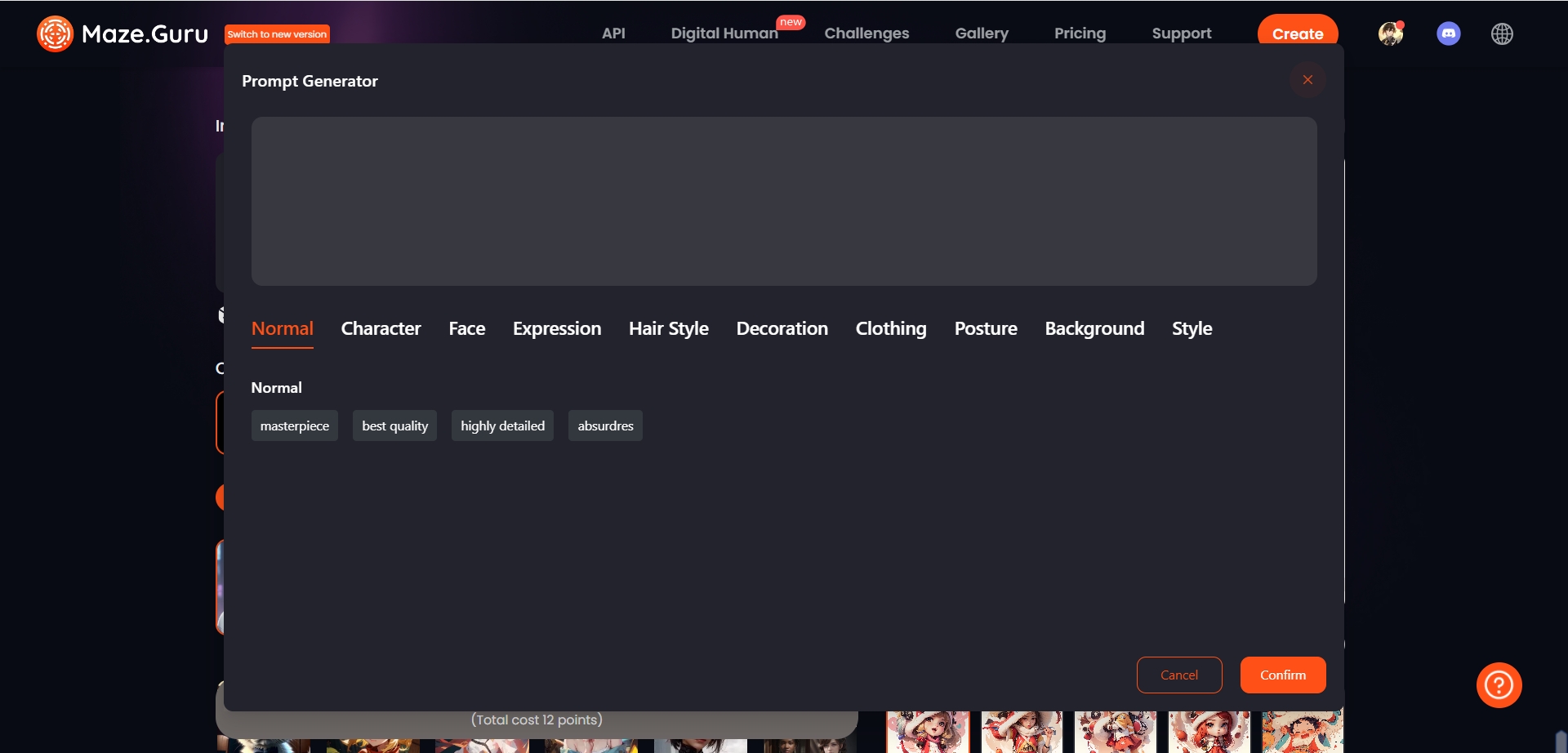
Prompt Generator can help you quickly generate prompts that AI can understand. user can pick some words from list
## Random Inspiration
Random Inspiration can help you randomly generate prompts
## Describe
The technology of generating text from images belongs to the field of computer vision, which is the technology of identifying the objects in the image from the image, through the CLIP (Contrastive Language–Image Pre-training) model based on AI computing technology. The relationship between pictures and text descriptions is greatly shortened. Simply put, the training method of the CLIP model is to associate pictures and text. Therefore, using the CLIP model can provide text descriptions for pictures.
## random seed
An independent and unique number for each generated graph, -1 represents random generation. Under the same number, word parameters and model settings, the images generated each time are independent and unique. This means that the painting results can be restored by regenerating with the same combination.
## Upscale
Enlarge the image to a clearer size